
The Mailing List Manager helps you build your own permission-based contact lists with just a few clicks. You can add contacts manually or automatically and group your list.
The List Import/Export wizard helps you import or export your list data by Microsoft Address book, Microsoft Outlook contacts, Microsoft Excel files, Text / CSV Formatted files, dBase 5 files.
By default, Email Marketer has a built-in mailing list with the name "Marketer List Database".
To start the List Manager, click Mailing Lists located on the left hand pane.
New List
Opens the wizard which you will use to create a new mailing list. Using this button you will connect your marketing list in one of the acceptable file formats and ODBC/OLEDB compatible databases.
For details, please reference Using The List Wizard.
Edit
Allows you to make changes to the settings of the selected mailing list.
Fields
Adds, removes or modifies attribute fields of the selected list.
Remove
Removes the selected list.
New Group
Opens the wizard which will guide you through the process of creating a new group. For details, please reference Creating a Group.
Edit Group
Allows you to make changes to the group settings of the selected group.
Remove Group
Removes the selected group.
New
Creates a new contact in the active list.
Remove
Removes the selected contacts.
Property
Allows you to changes the contact profile attributes such as name, email, address etc.
Refresh
Reloads the contacts from the list source.
Tools
This command contains the following utilities to manage the mailing list.
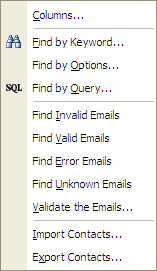
Columns
Customizes the list attributes displayed in the view.
Find by Keyword
Finds contacts by specified keyword.
Find by Options
Finds contacts if the attributes match specified options.
Find by Query
Finds contacts by query builder.
Find Invalid/Valid/Unknown Emails
Finds contacts by the validation results of the email addresses.
Validate the Emails
Validates all email addresses in the list and logs the "Invalid", "Valid" or "Unknown" status.
Import Contacts
Imports contacts from Outlook, Excel, Access or other formats to the list.
Export Contacts
Exports the contacts of the list to Text, CSV, Address Book files or other file formats.
With Email Marketer Business Edition, it is possible to handle subscribers and unsubscribers of a mailing list real-time by the Subscriber Service.