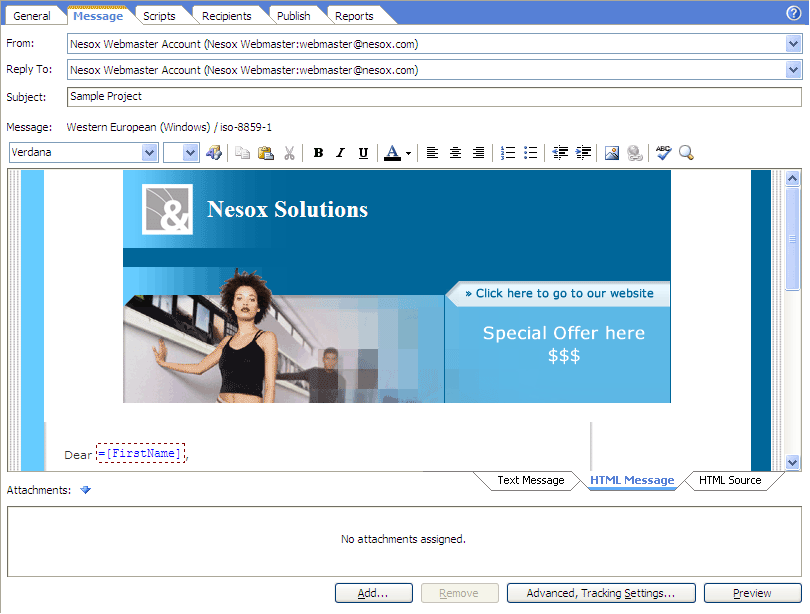
The built-in Message Editor supports all e-mail standards, and thus, you can use it to compose Text or HTML type messages, attach an unlimited number of files, and enjoy many other features.
When you want to add special emphasis or structure to message text such as bold text, color, or bulleted lists, you can use Hypertext Markup Language (HTML), the standard for formatting text for the Internet. HTML messages are different from text messages since they can contain formatted text, tables, pictures, and dynamic elements like animations, flashes, etc. HTML messages are basically web pages. Therefore, everything that can be done on web pages can be done in HTML messages as well.
The HTML editor is simply "What You See is What You Get". Basically, you set up the page and see how it looks with different elements such as text, images, forms, tables, etc. The editor will then automatically make the HTML coding for you. This can be nice, however, keep in mind that much of the HTML code is usually unnecessary for the actual functioning and can¡¯t be modified. Serious web developers or designers, would do better not using the HTML editor because many like to have a very specific say in how their HTML code ends up. However, applying HTML editing improves an author's control of format and appearance, and can also help authors work effectively without knowing HTML. By using HTML editing, users can simply click buttons to alter paragraph formats, font sizes, typefaces, font weights, colors, and so on.
HTML Editing provides the following functionality to the user:
Users can exploit the HTML editing as a means to generate proper and consistent HTML and XML code. The HTML editor generates standard HTML, allowing third-party applications to quickly adapt the latest Microsoft browser features.
To compose your message by Message Editor, click Message in the
project view header.
From
Selects the From account for the message. If no account is listed, you may
need to create an
account.
Reply To
Selects the Reply To account for the message. If no account is listed, you
may need to create an
account.
To
Selects the email field of the recipients list.
Subject
The subject for the message.
Messages
The WYSIWYG message editor view, you may click Text Message, HTML
Message or HTML Source to switch between the editor
views.
Text Message
Switches to plain text editor for plain text message.
HTML Message
Switches to WYSIWYG rich message editor for HTML message.
HTML Source
For advanced users, switches to view or edit the source code of HTML message.
Preview
Opens the message preview and delivery test window.
Attachments
The attachments view as icons.
Add
Adds an attachment file to the message.
Remove
Removes the selected attachment from the message.
Advanced, Tracking Settings
Specifies the message format (HTML format, Plain text format or both),
priority, encoding. You can also enable campaign tracking feature by this command.
Note
When you use formatted HTML and the recipient's e-mail or news program
cannot
read HTML, the message appears as plain text with an HTML file attached. Most
e-mail programs that support Multipurpose Internet Mail Extensions (MIME) can
read HTML formatting.